
Google Pay
Payments made easy with Google Pay
Google Pay
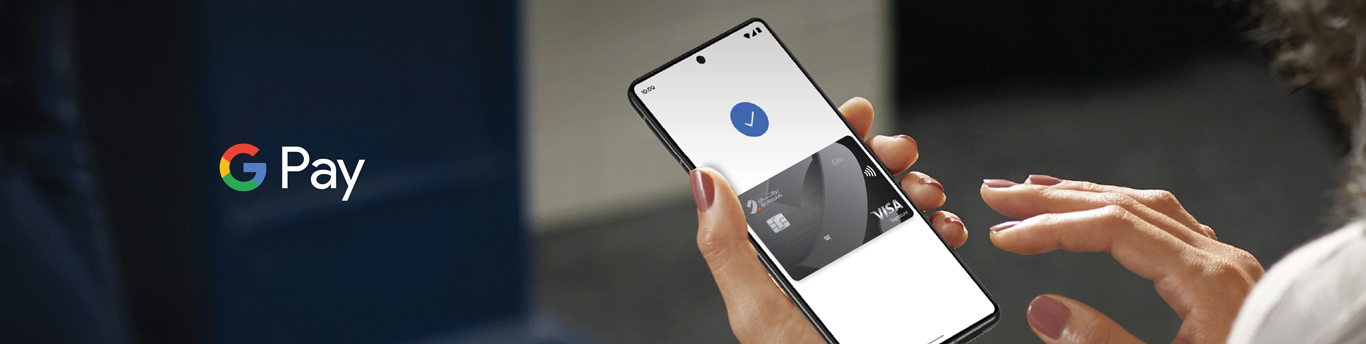
Google Pay makes paying for your purchases easier and more secure. With just your smartphone or smartwatch, you can use your Burgan Bank debit, credit, or prepaid card to make quick, contactless payments both in-store and online. Whether you're shopping, dining out, or traveling, Google Pay is your fast, convenient, and secure payment solution.
Secure : Google Pay ensures the safety of your payment information with advanced security features, keeping your data secure and private.
Simple : Using Google Pay is easy. Simply unlock your phone and hold it near the terminal to pay—no need to open the app or search for your card.
Speedy : Setting up Google Pay is quick, and once it’s set up, making payments is faster than ever. Just tap to pay with your eligible Android™ phone or Google Wear OS wearable.
Google Pay is available to all Burgan Bank Debit, Credit, and Prepaid cardholders. Simply link your Burgan Bank card to your compatible smart device and enjoy seamless, contactless payments wherever you go!
Google Pay is available to users on any Android device running Android 5.2 or higher
Setting Up Google Pay on Your Phone
- Open the Google Pay app and sign in with your Google account.
- Scan your card using your phone’s camera or enter the details manually.
- Verify your information and accept the Terms & Conditions.
- You will receive an OTP on your registered mobile number for verification.
- Enter the OTP to complete the setup.
- Your card will now be ready to use. Unlock your phone with a passcode to make payments.
Setting Up Google Pay on Your Smart Watch
- Open the Google Pay app on your smartwatch.
- Set a passcode on your smartwatch.
- Use your mobile device to complete the registration.
- Follow the instructions on your mobile to add your card to the watch.
- Enter the OTP sent to your mobile for verification.
- Your card will be ready to use on your watch, with passcode protection.
Setting Up Google Pay via Burgan Bank Mobile App
- Log in to the Burgan Bank Mobile Banking App.
- Click “Add to Google Pay” and select a card to add.
- Enter the OTP sent to your registered mobile number to verify.
- Your card will be added to Google Pay and ready for use.