
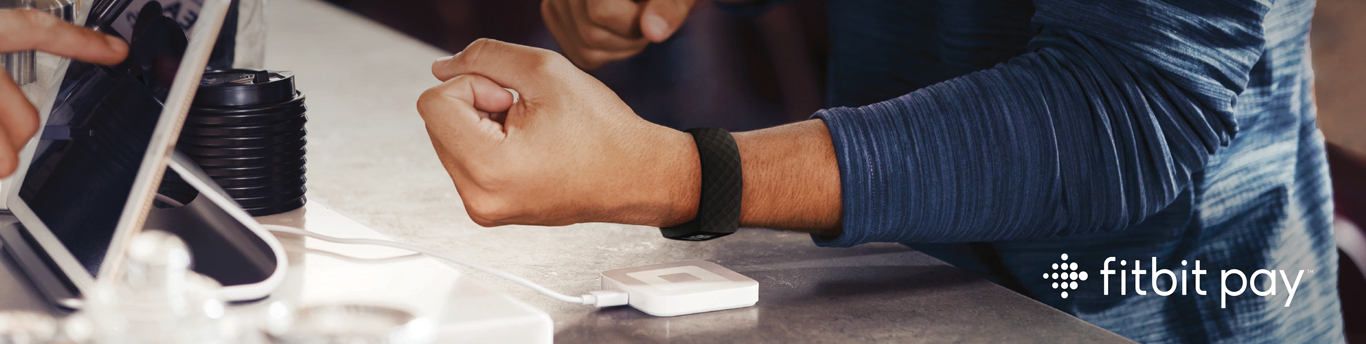
Fitbit Pay
Make easier faster and secured purchase anywhere, anytime with Burgan Bank contactless payment solutions
Fitbit Pay
Fitbit Pay offers a fast and convenient way to make in-store purchases directly from your wrist with your Burgan Bank card. Keep your card safely tucked away in your wallet and your phone in your pocket - just tap your eligible Fitbit device to pay with ease.
Secure: Fitbit Pay ensures that your transactions are secure with encrypted payment data. Every time you make a purchase, your card details are never shared with the merchant, adding an extra layer of protection.
Simple: With Fitbit Pay, paying is effortless. Simply tap your eligible Fitbit device at the checkout. No need to reach for your wallet or phone - everything you need is right on your wrist.
Speedy: Fitbit Pay provides you seamless payment solutions. Whether you're grabbing coffee or checking out at a store, the contactless payment method speeds up the process, saving you time and making checkout faster than ever.
Fitbit Pay is available to all Burgan Bank Debit, Credit, and Prepaid cardholders. Simply link your Burgan Bank card to your compatible smart device and enjoy seamless, contactless payments wherever you go!
Fitbit Ionic and Ionic adidas edition Fitbit Versa 2 and Versa 2 special edition Fitbit Versa and Versa special edition Fitbit Charge 4 and Charge 4 special edition Fitbit Charge 3 special edition Some of Versa models is not supporting Fitbit Pay, if Fitbit Pay is listed in the text surrounding the heart-rate sensor on the back of your Fitbit device, you can use Fitbit Pay.
-
Download the Fitbit App and Charge Your Device
Start by downloading the latest version of the Fitbit app on your smartphone and ensure your Fitbit device is fully charged. -
Access Device Settings
Open the Fitbit app, go to your device settings, and select your Fitbit device. -
Add Your Payment Card
Tap on Fitbit Wallet and follow the on-screen instructions to add your payment card details. -
Set a PIN Code (if necessary)
If you haven’t set a PIN for your Fitbit device, you’ll be prompted to create one for secure payments. -
Verify and Sync Your Card
Read and accept the Terms and Conditions, enter the authentication code sent to your mobile, and your card will be synced to your Fitbit device via Bluetooth. You're now ready to make payments!
To pay with your Fitbit device: Press and hold the left button on your Fitbit device for 2 seconds. Swipe to the Payments screen if it's not shown If prompted, enter your 4-digit Fitbit device PIN code. Your default card appears on the screen To pay with your default card, hold your wrist near the payment terminal When the payment succeeds, your Fitbit device vibrates and you’ll see a confirmation on the screen
- On a Fitbit Ionic, Versa 2, Versa 2 Special Edition, Versa and Versa Special Edition smartwatch: To pay with a different card, swipe across (from right to left) to find the card you want to use and then hold your wrist near the payment terminal
- On a Fitbit Charge 4, Charge 4 Special Edition and Charge 3 Special Edition fitness tracker: To pay with a different card, tap on the screen to find the card you want to use and then hold your wrist near the payment terminal.